Introduction to Codex
Codex is a product from OpenAI. While ChatGPT is a general purpose generative AI tool, Codex is meant for facilitating coding projects and versioning. This tool is included in the NIH ChatGPT enterprise license. Researchers can interact with it through the terminal, VS Code, or the desktop application. In this session, the Codex desktop application will be used to show how it can be used to generate code and perform version control on coding project.
The data used in this class comes from the HCC1395 example bulk RNA sequencing data and include expression matrices and differential expression results table. This is data includes 3 normal and 3 tumor samples.
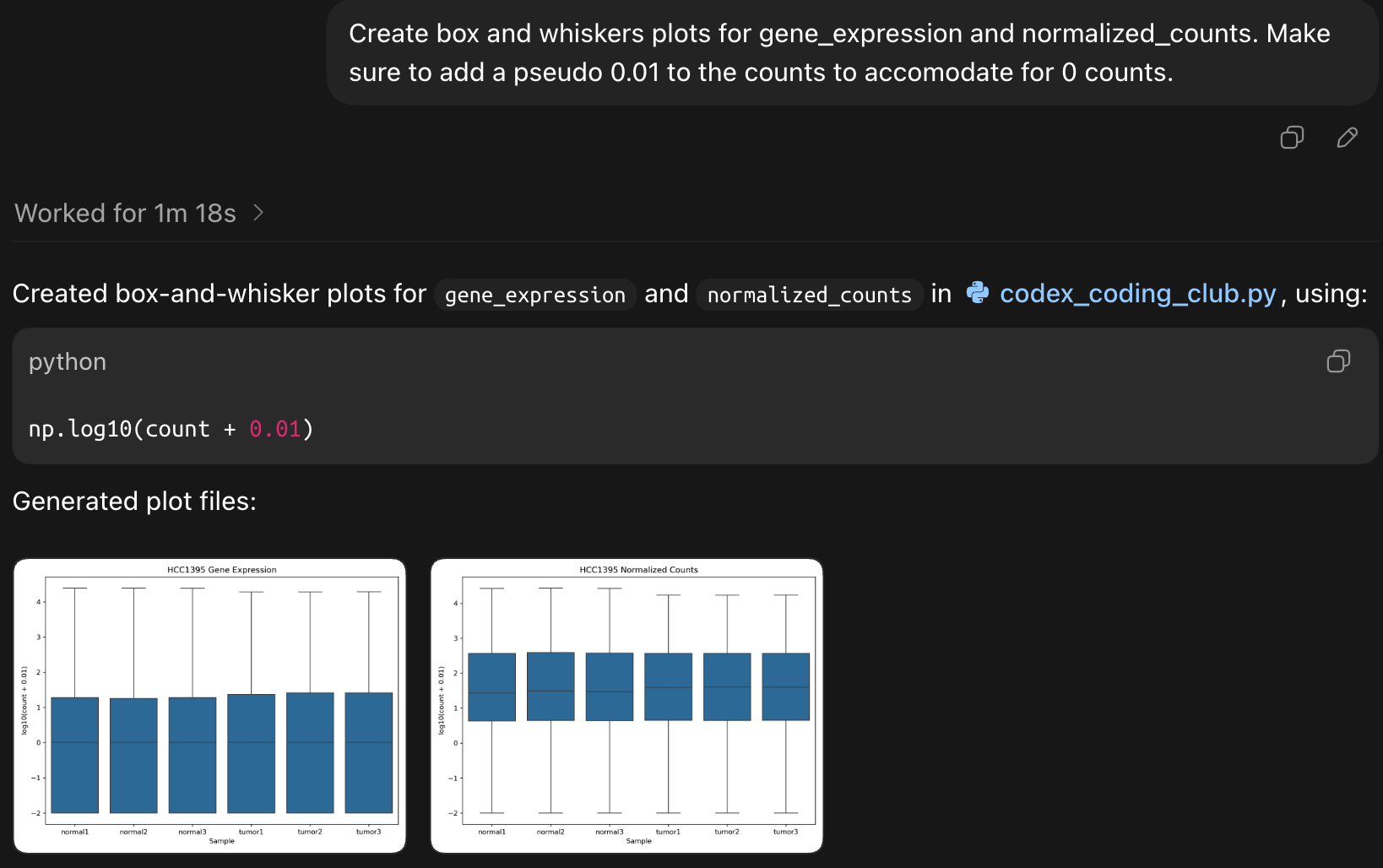
hcc1395_gene_expression.csv: raw (ie. not normalized) expression data. This data will be used visualize some quality metrics for the raw expression.- Construct boxplot to show distribution of expression prior to normalization.
- Construct PCA to see clustering of samples prior to normalization.
hcc1395_normalized_counts.csv: normalized expression data. Visualizations will be created to check if the normalization procedure for the raw expression worked.- Generate boxplot to show distribution of expression after to normalization.
- Generate PCA to see clustering of samples after to normalization.
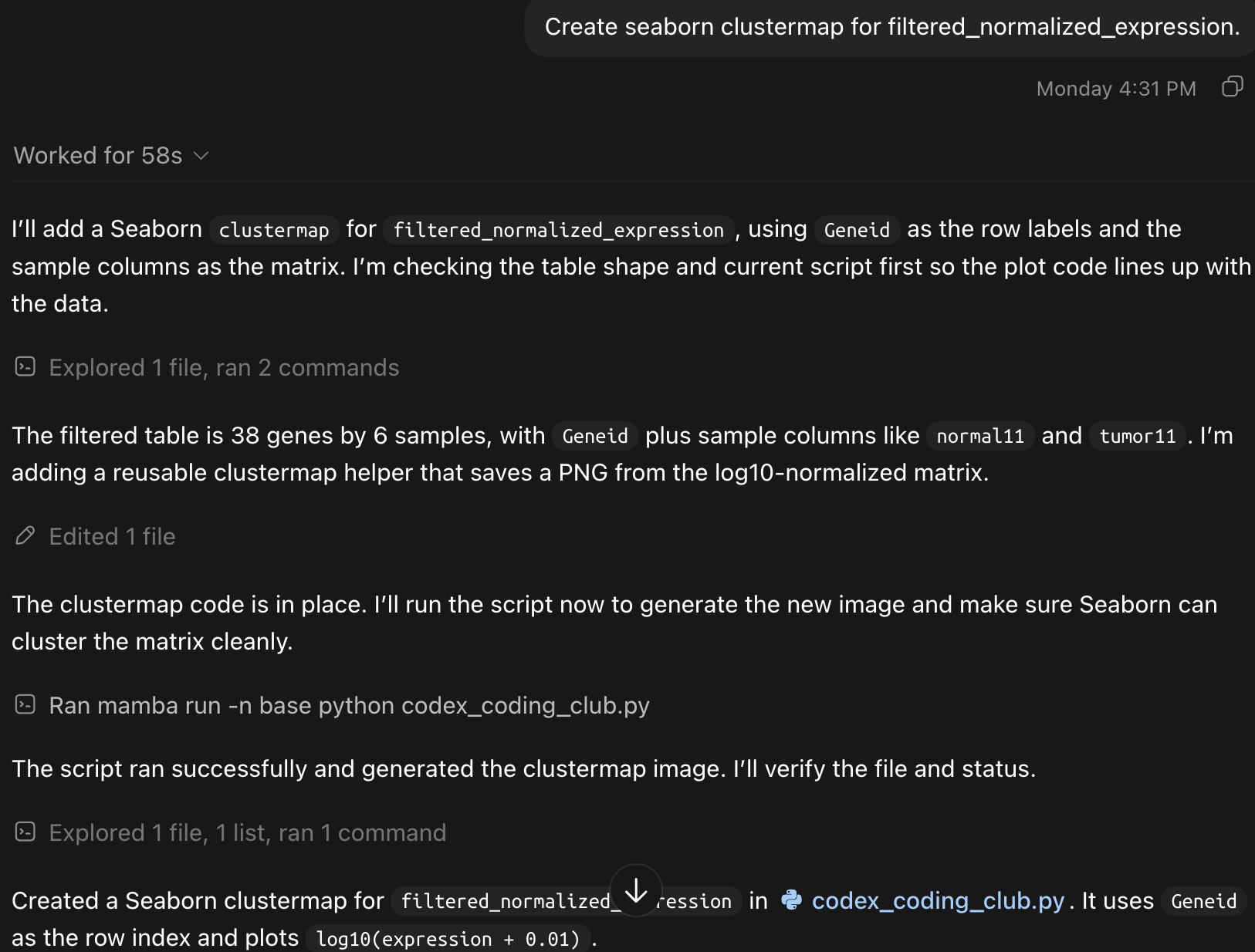
hcc1395_filtered_normalized_expression.csv: normalized expression data for the top differentially expressed genes.- Create heatmap and dendrogram for top differentially expressed genes to check if their are expression patterns among tumor and normal samples.
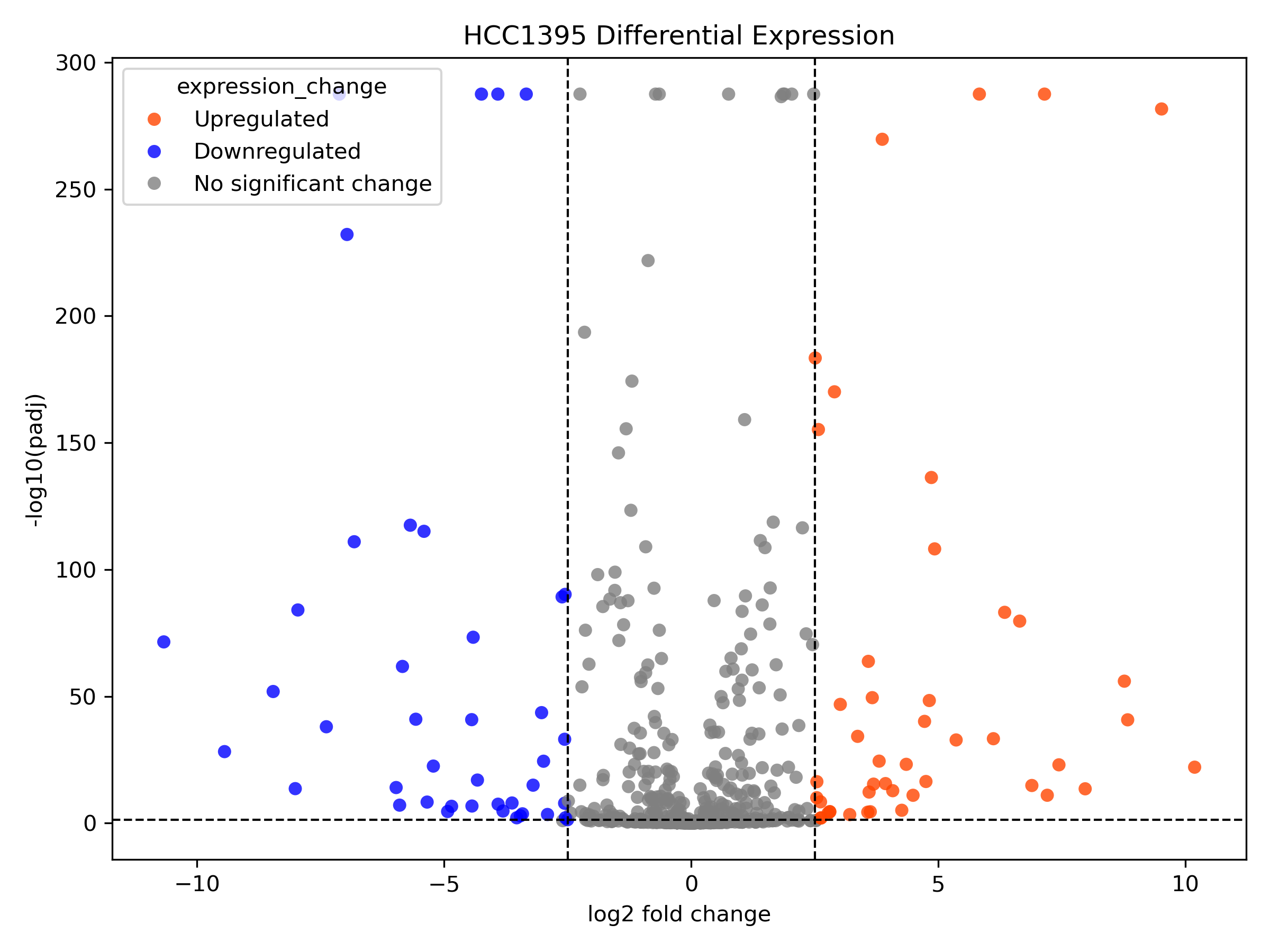
hcc1395_deg.csv: differential expression analysis results.- Make volcano plot to illustrate gene expression among the samples.
Learning Objectivs
In this class, participants will learn how to use Codex as generative AI tool that enables versioning of coding projects.
Start a New Project
The first step in using Codex for coding is to open the desktop application and click the "Project" icon to create a new project.
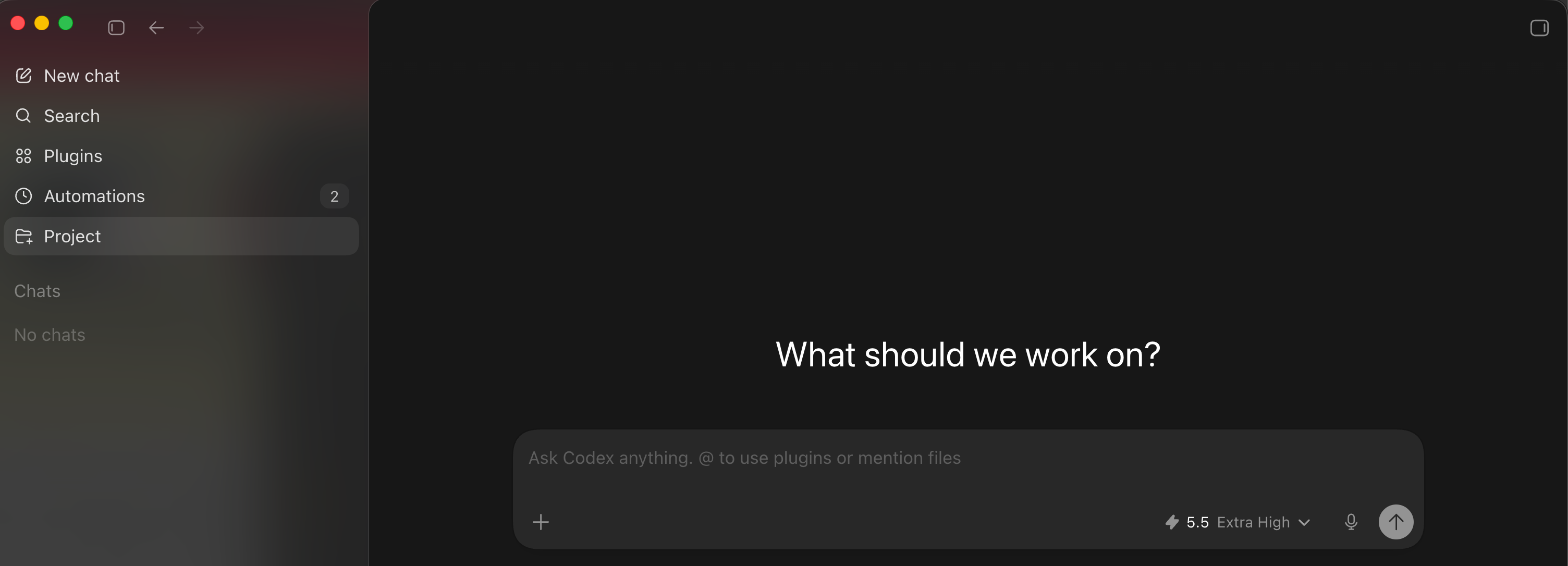
Users have the option to start from sratch (ie. new) or existing folder.
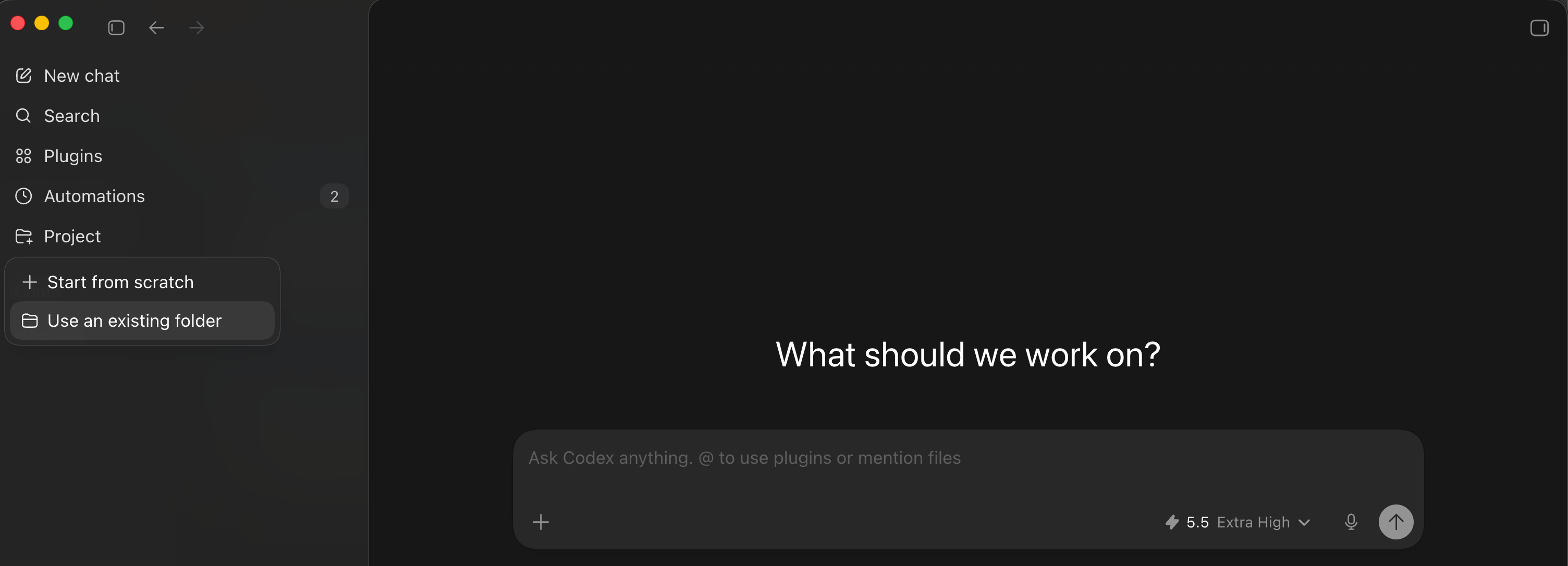
This example selects the codex_coding_club folder in the instructor's ~/Downloads directory.
Initialize a Git Tracking in the Project Folder
Next, tell Codex to initialize the codex_coding_club folder as Git repository.
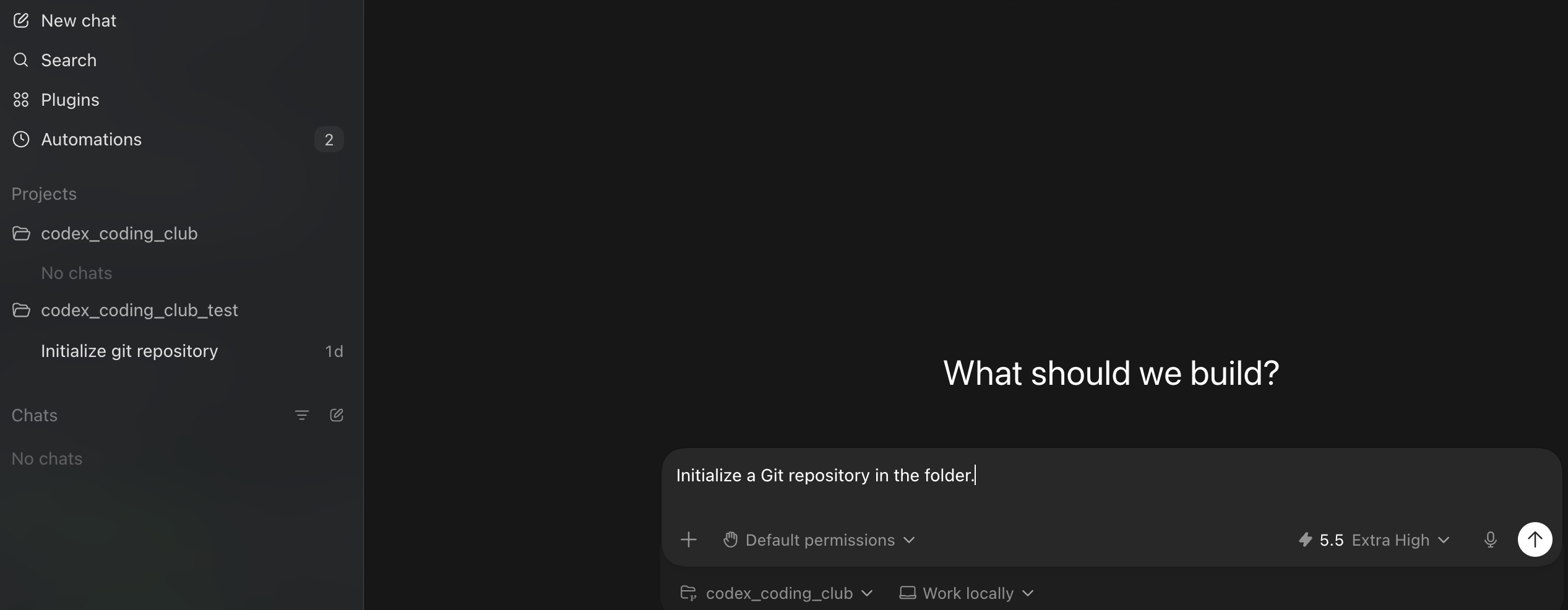
As Codex is initializing the repository, it will ask for write permission to the project folder. In this case, grant access by clicking "Yes". Check the project folder to ensure that the .git folder is there.

Users will see the following message when Codex has finished initializing the Git repository.
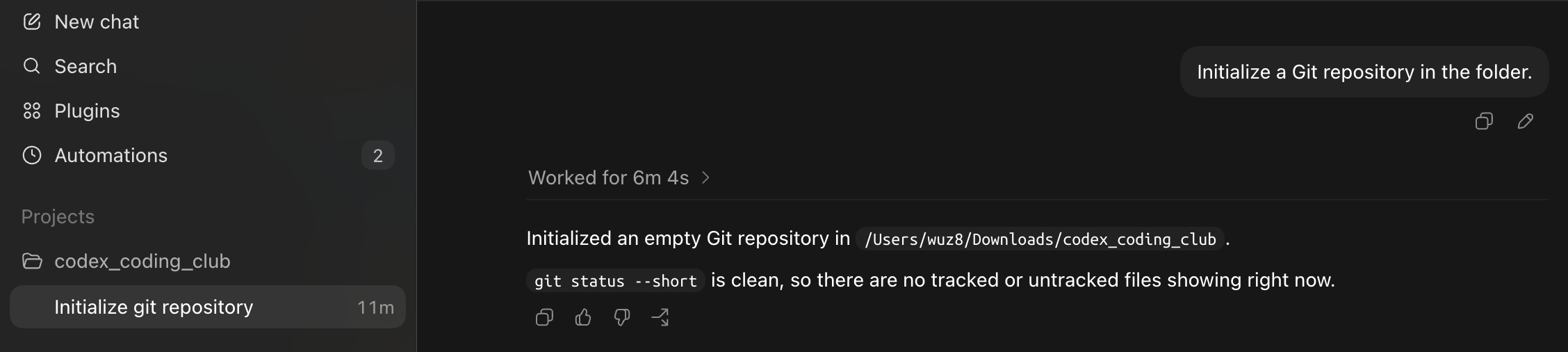
Copy Data files to Project Directory
Codex can copy files from other folders. In this case, it will copy over CSV files that are needed for the coding project involving visualizing bulk RNA sequencing data.

Users can track CSV files via Git and Codex can help.
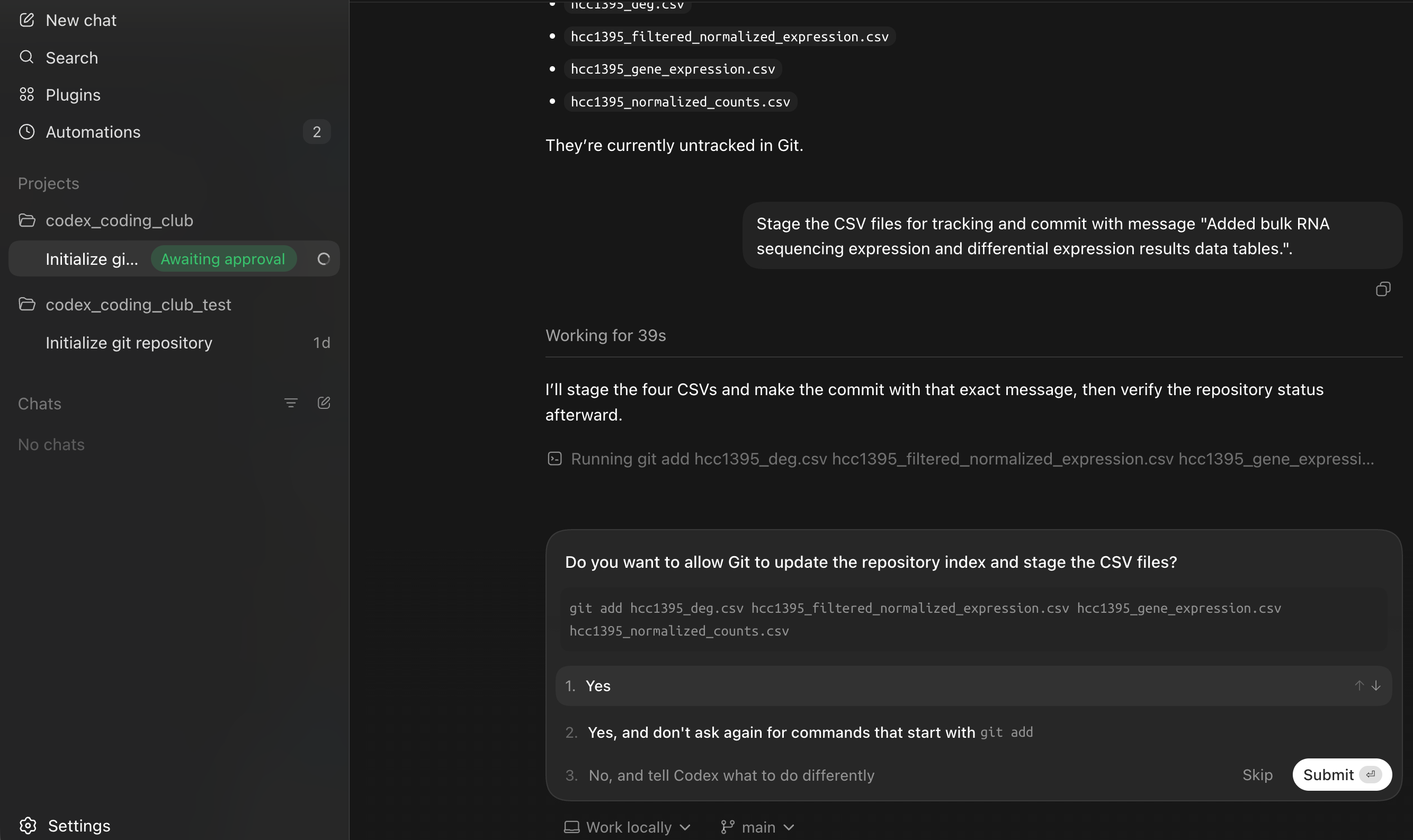
Codex will confirm with the user about committing the files after staging is complete. Click "Yes" to commit.

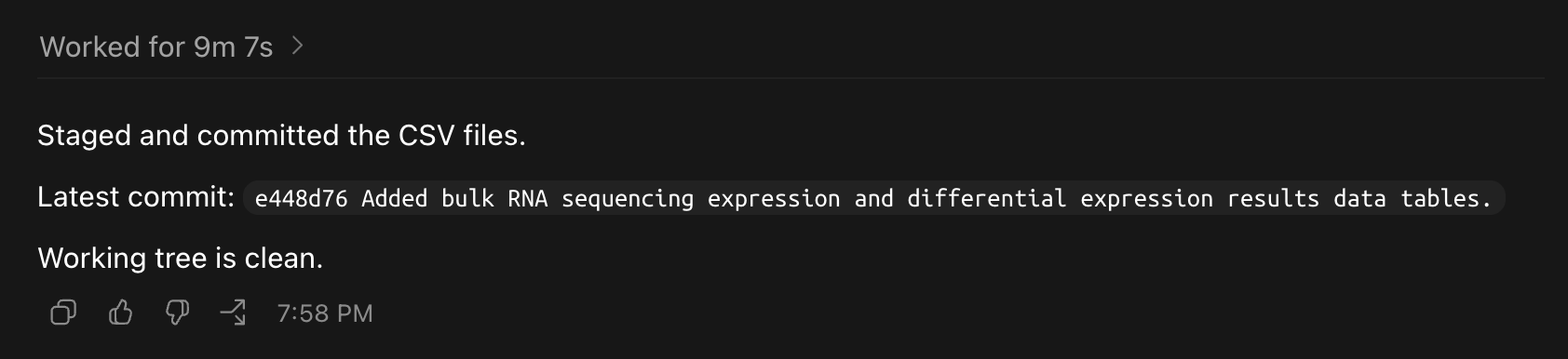
A message will appear indicating the Git commit is successful.
Creating a Script
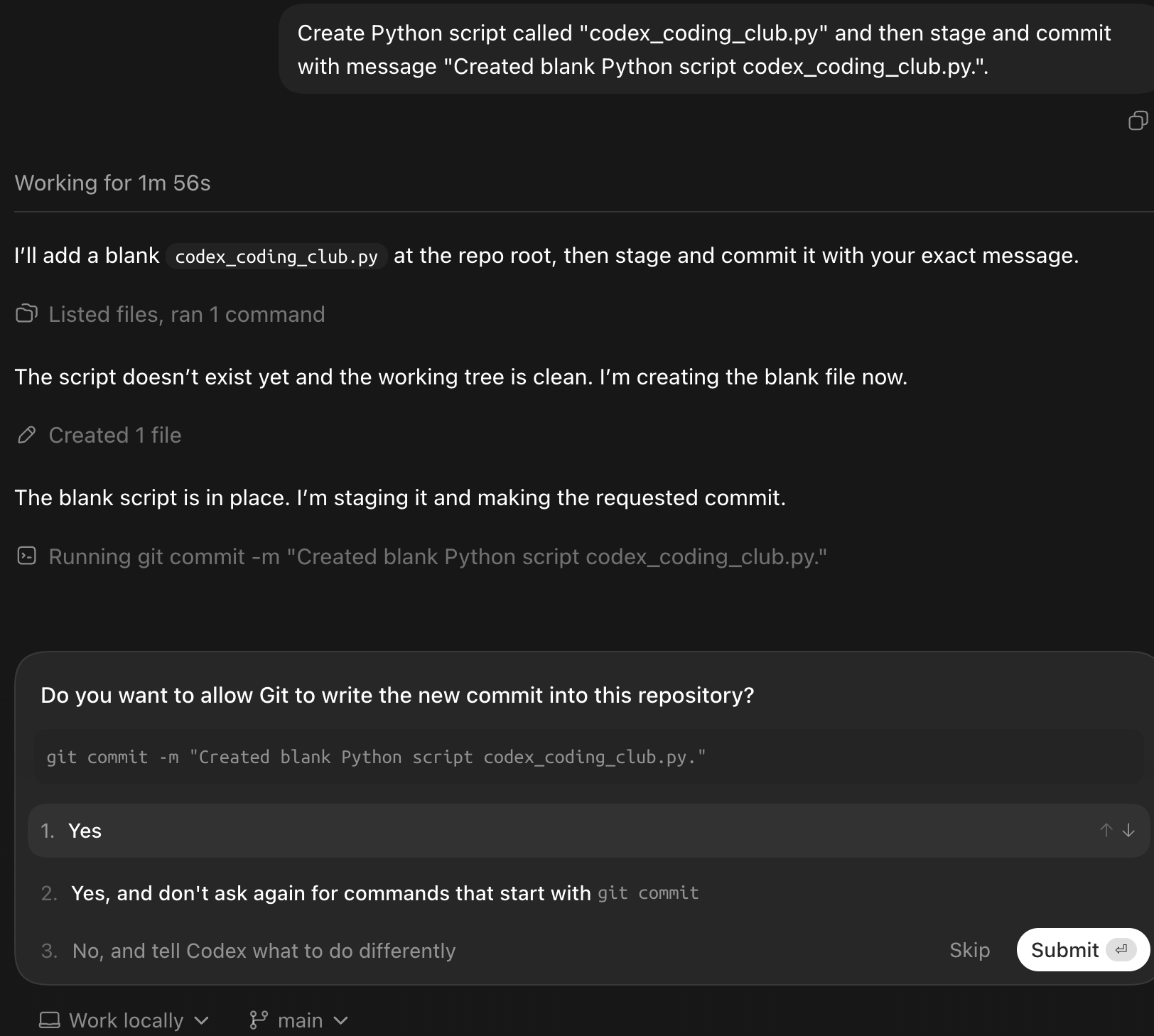
Next, tell Codex to create a python script called codex_coding_club.py and stage for tracking as well as commit.

When asked to stage, click "Yes".

After staging, click "Yes" to go ahead with the commit.
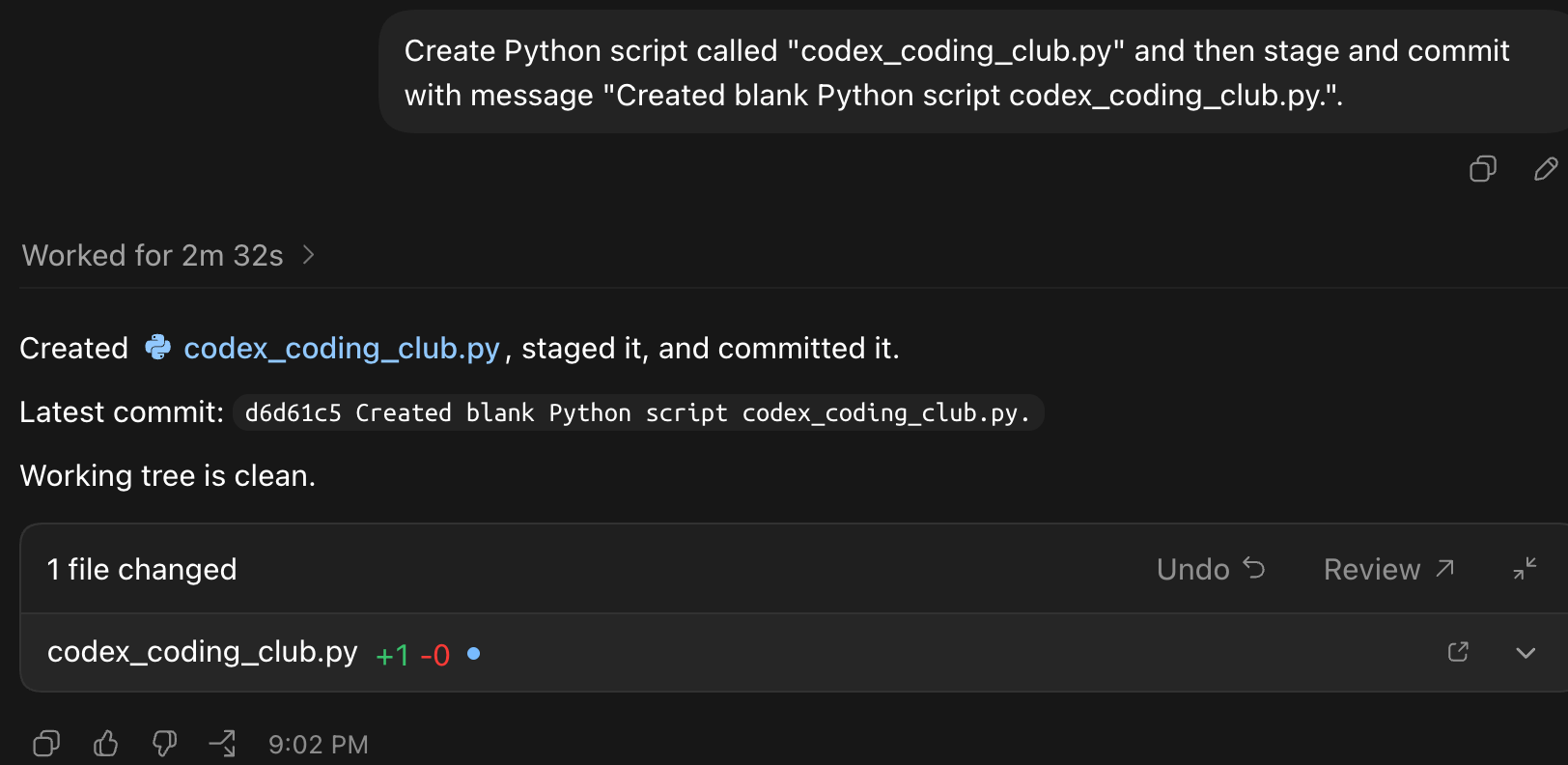
Finally, the new script has been committed.
Load Python Packages
The following step will prompt Codex to import Python packages that are needed for this project.
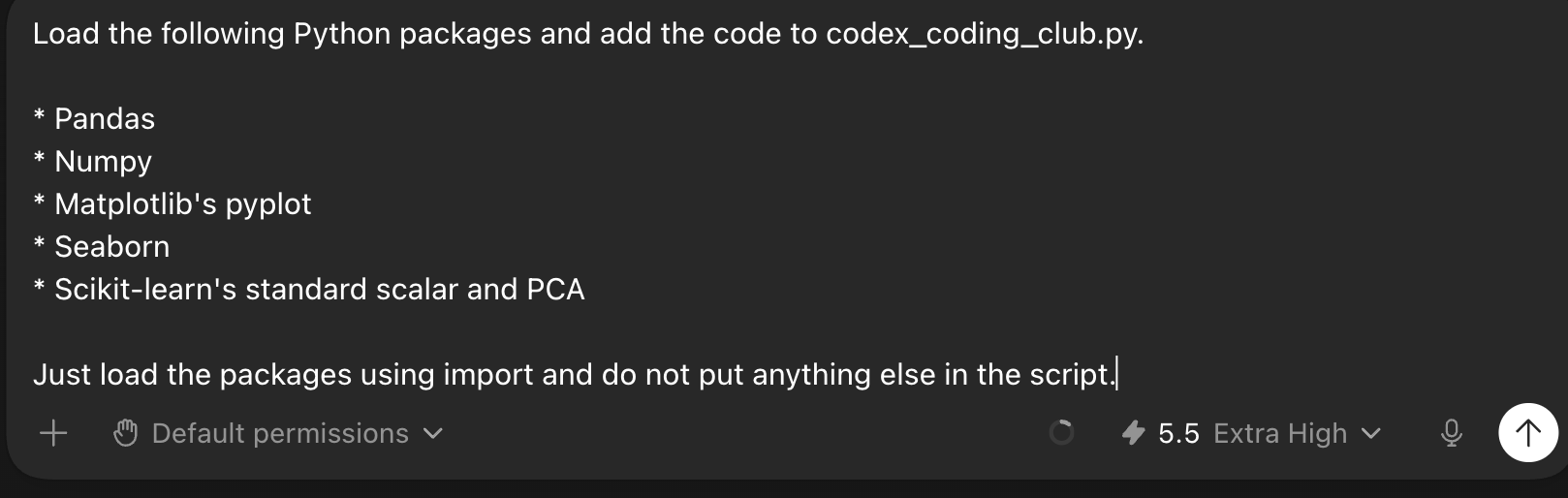
- Pandas will be used for data wrangling.
- Matplotlib and Seaborn will be used for creating visualizations.
- Scikit-learn will be used to calculate PCA from expression data.
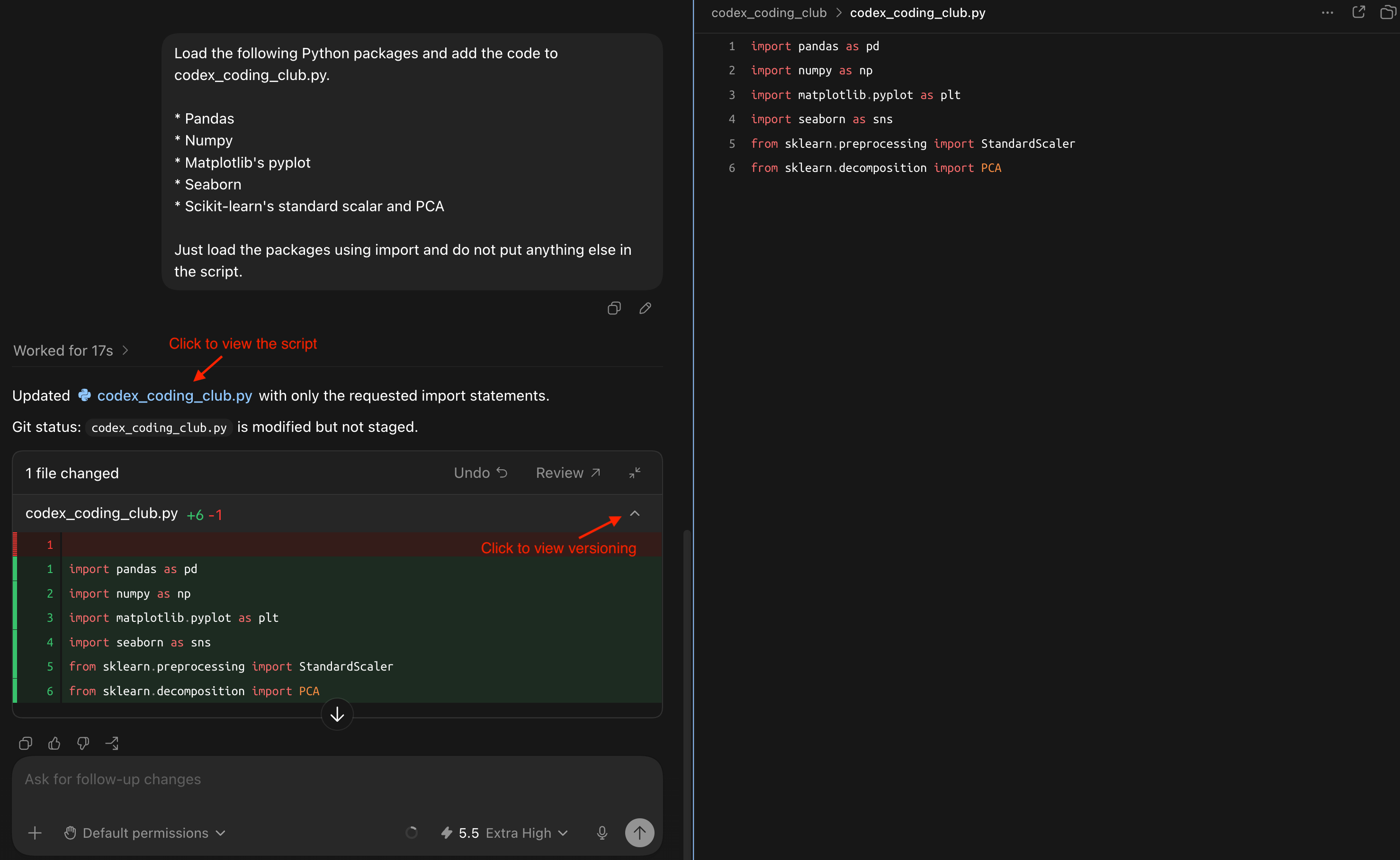
Clicking on the script link opens a panel with that allows users to view the script content within the Codex desktop application. Alternatively, click on the chevron to view versioning information. Regarding the versioning information:
- The red
-1indicates the previous version of the script, which in this case was the blankcodex_coding_club.pyfile. - The green
+6indicates that 6 lines were added to the current version of the script.
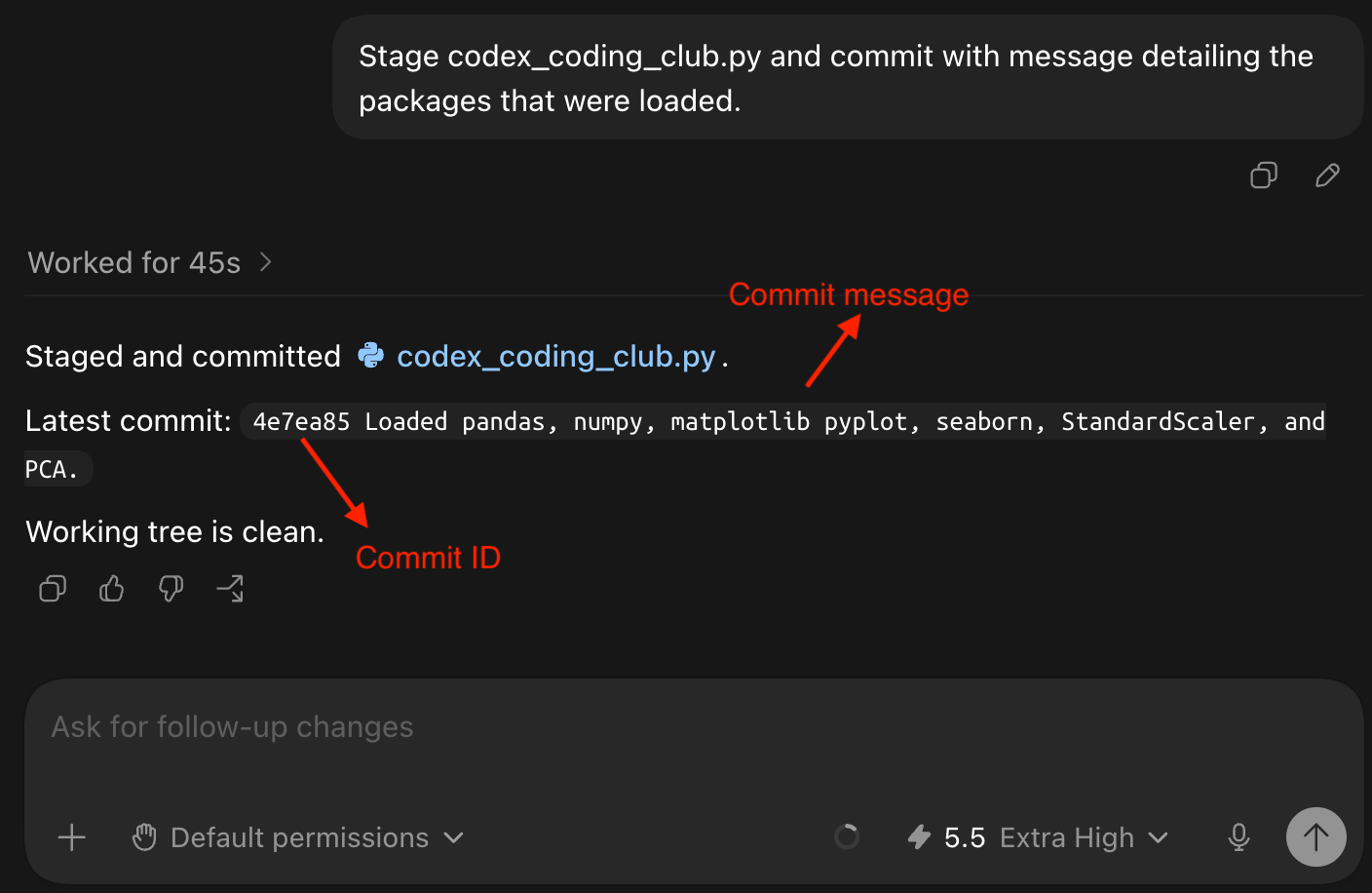
Tell Codex to stage and commit the changes to codex_coding_club.py. This example lets Codex write a commit message on its own. The alpha numeric before the commit message is the commit ID.
Tip
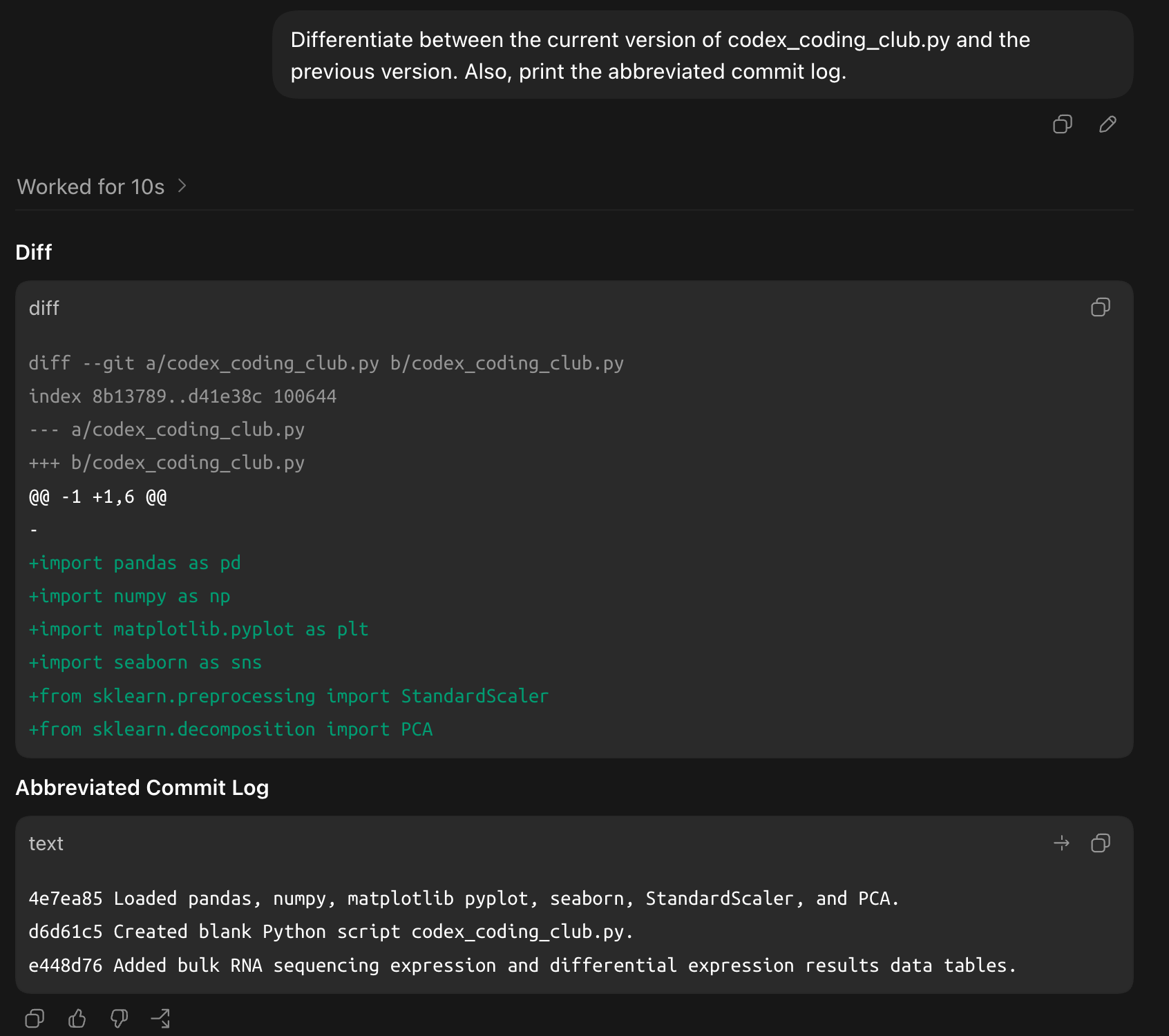
Users can prompt Codex to differentiate between versions and print commit logs.
Visualizing Bulk RNA Sequencing Data with Codex.
Tip
If Python was installed via a package manager like Mamba, make sure to prompt Codex to activate the environment prior to running code.
Importing Bulk RNA Sequencing Data Tables
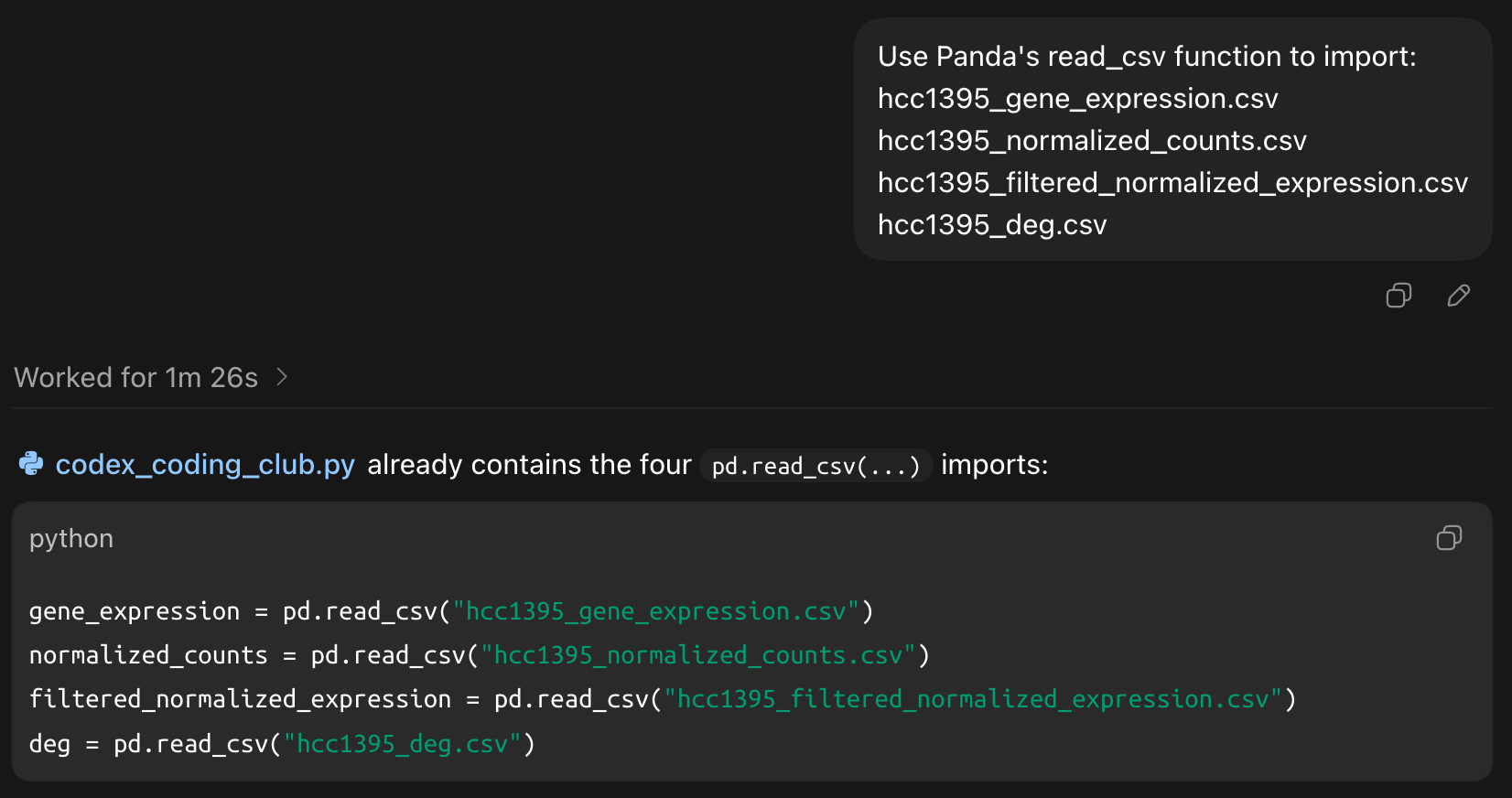
The prompt below tells Codex to use Panda's read_csv function to import the following bulk RNA sequencing data tables and then tell it to stage and commit.
- hcc1395_gene_expression.csv
- hcc1395_normalized_counts.csv
- hcc1395_filtered_normalized_expression.csv
- hcc1395_deg.csv
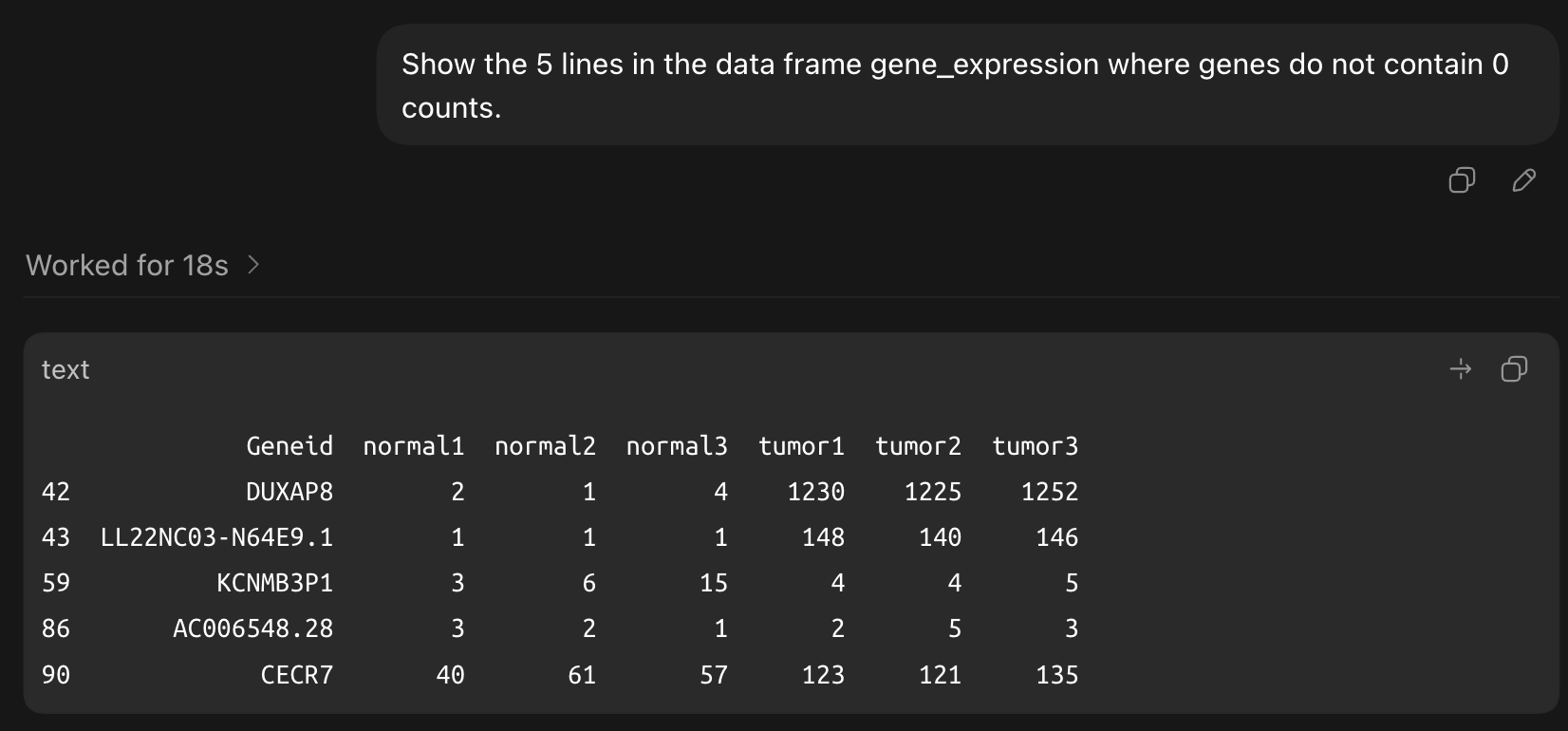
User can prompt Codex to display a data table on the desktop application.
Following data import, ask Codex construct box and whiskers plots for the unnormalized and normalized gene expression tables. Ask it to add a pseudo 0.01 to accommodate for genes where expression is 0 and the log2 transforming. Stage and commit after ensuring the results satisfy user needs.
The next task is to ask Codex to construct a heatmap showing how the top differentially expressed genes in the data cluster.
The resulting heatmap is below.

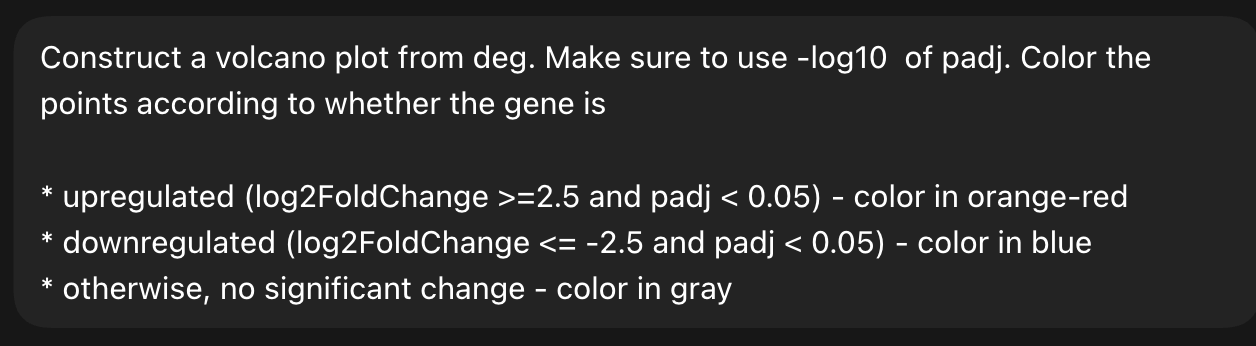
Finally, ask Codex to create a volcano plot to display expression changes from the differential expression results table. Stage and commit when statisfied with the results.
Automations
Codex offers automated ways to update status for coding projects and development teams.
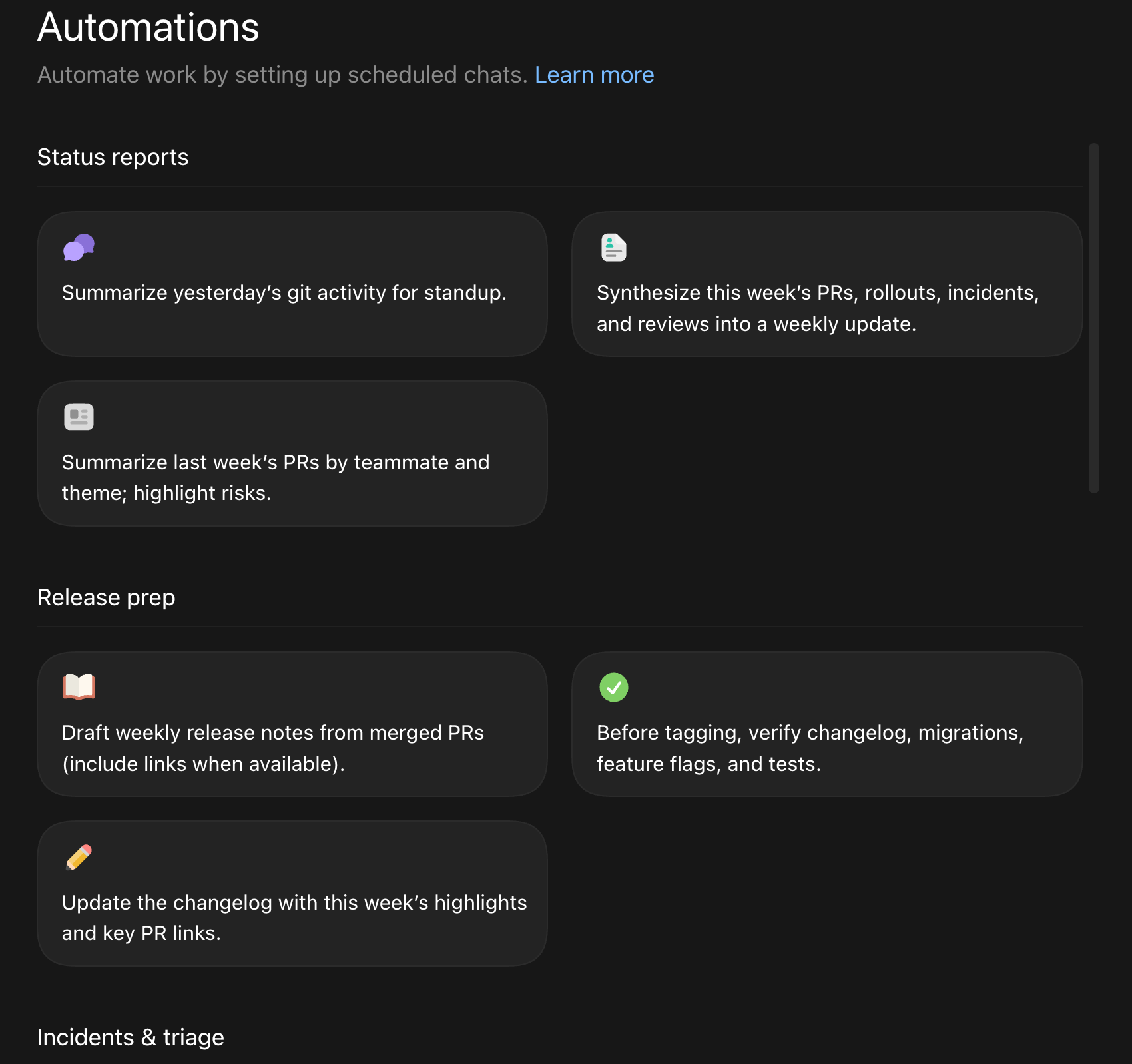
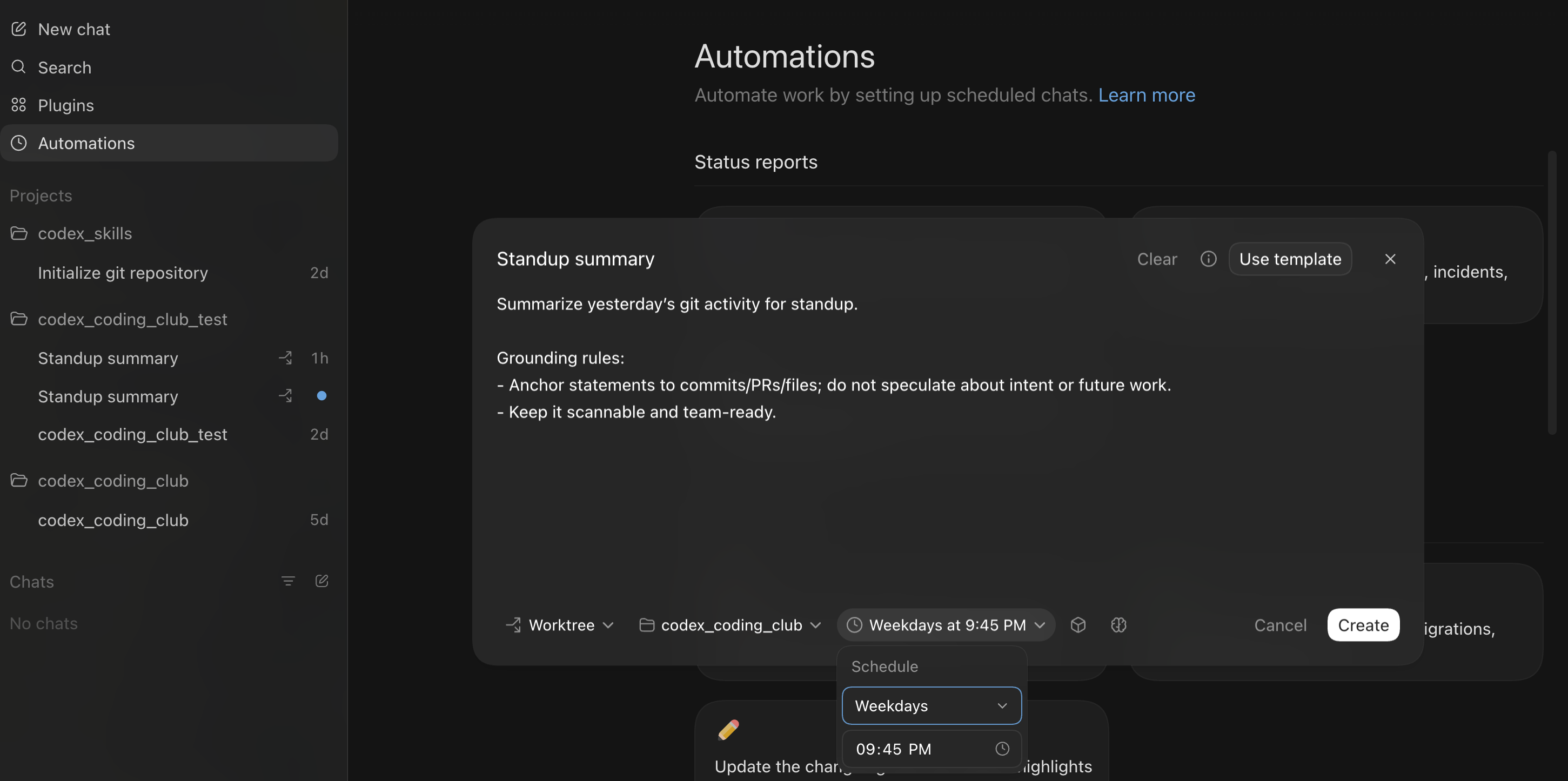
For instance, automating tasks such as summarizing Git commits is a good way to inform team mates on what was done during the previous day. To create auto Git summaries, click on "Summarize yesterday's Git activity for standup".
Then select the project from the drop down menu.
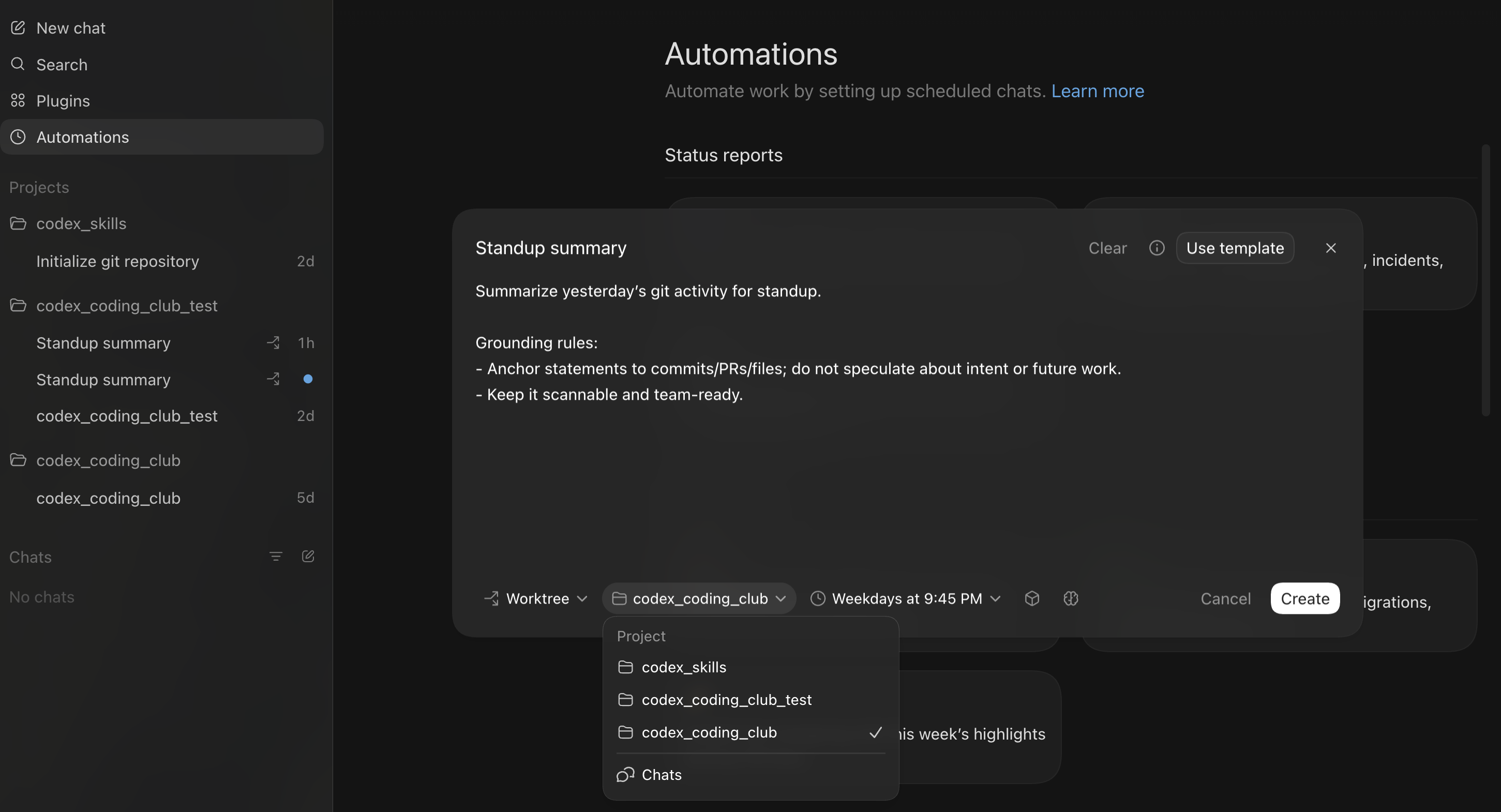
Following that, select the time when this daily task will be performed.
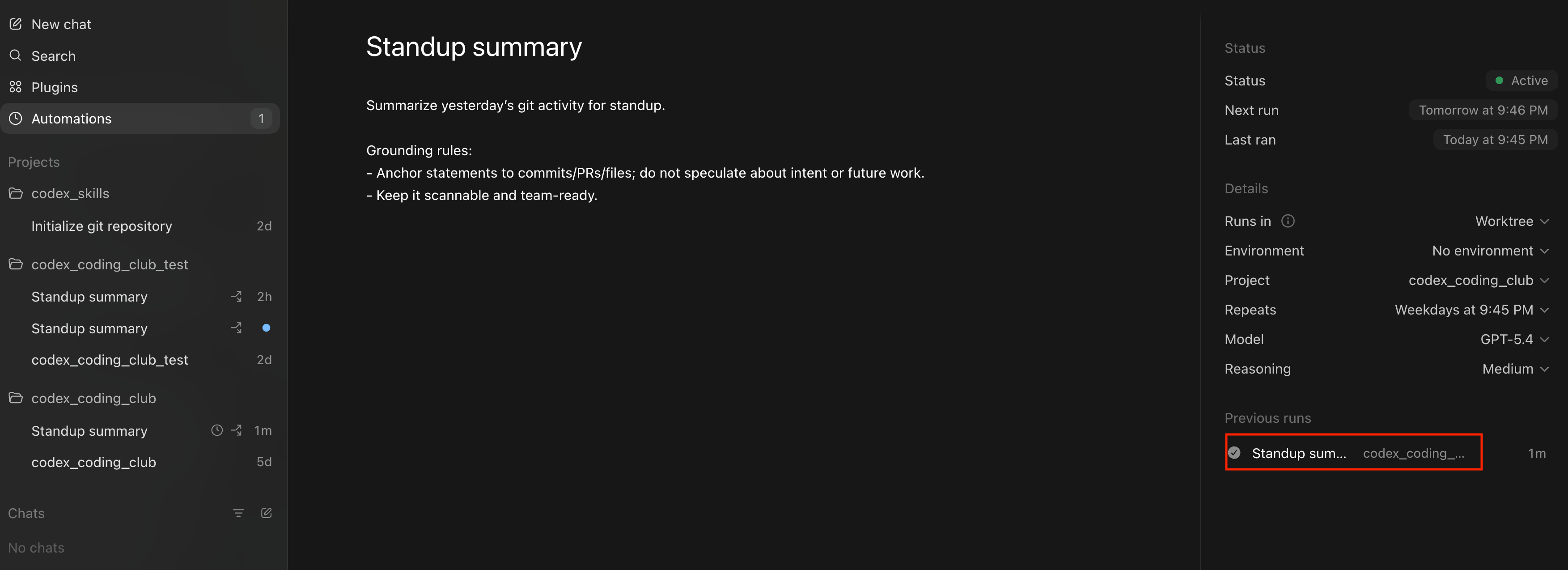
When the summary has been created, click on it at the bottom right of the Codex desktop application window.
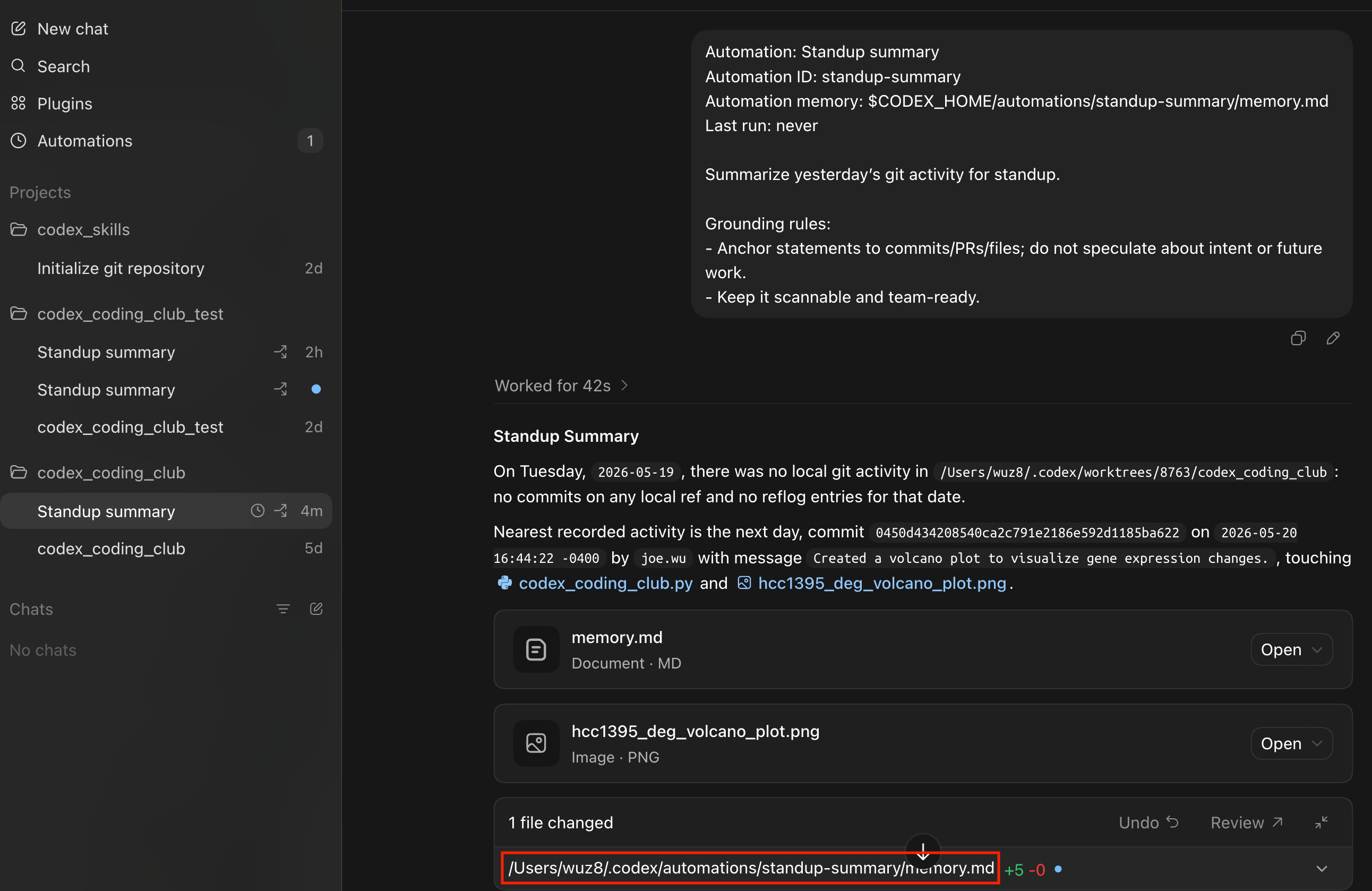
An example of the Git commit summary is show below. Note that Codex will also provide a path the summary report in markdown (.md) format.
Note
The Git commit summary is located in the .codex/automations folder in the user's home directory. It would be a good idea to ask Codex to move this over to the project directory.